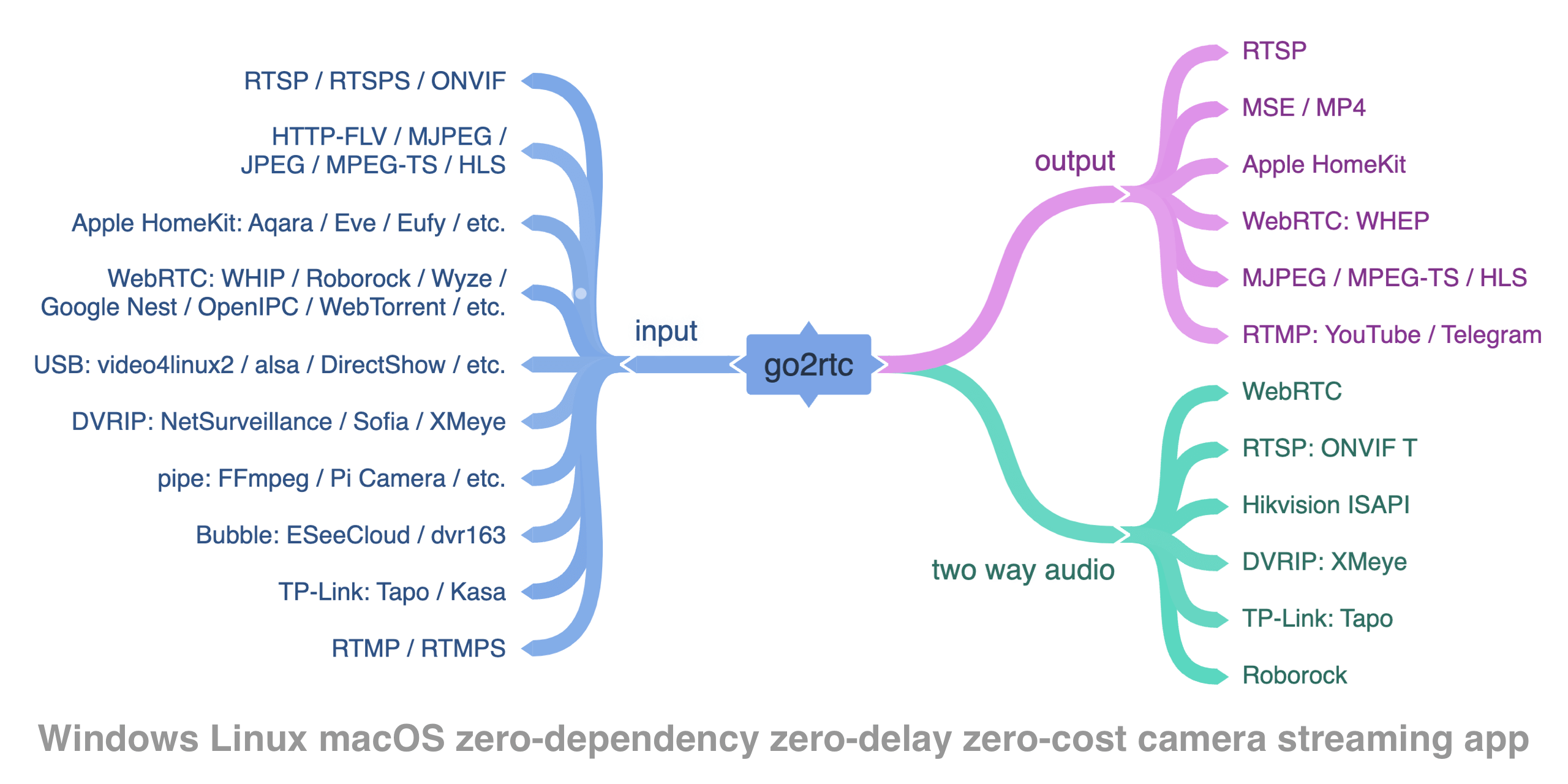
If you’re working on smart home systems, camera surveillance, or need to stream various camera feeds to browsers, go2rtc is definitely an eye-catching tool. It works like a universal converter, seamlessly transforming RTSP, RTMP, HTTP and other streaming protocols into WebRTC, HLS, MJPEG with extremely low latency.
Project Links
- GitHub: https://github.com/AlexxIT/go2rtc
- Docker Hub:
alexxit/go2rtc - Documentation: https://github.com/AlexxIT/go2rtc/wiki
Core Highlights
Zero Dependencies, Ready to Use
- Single binary file, supports Windows/macOS/Linux/ARM platforms
- Zero configuration startup, works with default settings
- Built-in web management interface on port 1984
Incredibly Rich Protocol Support
Input Sources:
- RTSP/RTSPS (standard for IP cameras)
- RTMP (commonly used for live streaming)
- HTTP-FLV/MJPEG/JPEG (web cameras)
- FFmpeg (almost all media formats)
- USB cameras (local devices)
- HomeKit cameras (Apple ecosystem)
- Various brand-specific protocols (Tapo, Ring, Hikvision, Dahua, etc.)
Output Protocols:
- WebRTC (real-time browser playback, lowest latency)
- RTSP server (standard protocol output)
- HLS (Apple device friendly)
- MSE/MP4 (good browser compatibility)
- MJPEG (simple and straightforward)
Smart Codec Negotiation
This is go2rtc’s most powerful feature — it automatically matches the best codec scheme between clients and sources:
graph TD
    A[Camera H264+AAC] --> B[go2rtc Core]
    C[Camera H265+PCMU] --> B
    D[USB Camera] --> B

    B --> E[Browser WebRTC]
    B --> F[Apple Device HLS]
    B --> G[RTSP Client]
    B --> H[Recording Storage]

    B -.-> I[Auto Transcoding<br/>H265→H264<br/>PCMU→OPUS]

    style B fill:#e1f5fe
    style I fill:#fff3e0
Quick Start
Binary Deployment
Download the binary file for your platform:
# Linux example
wget https://github.com/AlexxIT/go2rtc/releases/latest/download/go2rtc_linux_amd64
chmod +x go2rtc_linux_amd64
./go2rtc_linux_amd64
Docker Deployment
# Basic run
docker run -it -p 1984:1984 -p 8554:8554 alexxit/go2rtc

# With configuration file
docker run -it \
  -p 1984:1984 -p 8554:8554 -p 8555:8555/tcp -p 8555:8555/udp \
  -v $(pwd)/go2rtc.yaml:/config/go2rtc.yaml \
  alexxit/go2rtc
Home Assistant Integration
If you’re using Home Assistant, install the Add-on directly:
- Add repository:
https://github.com/AlexxIT/hassio-addons - Install go2rtc Add-on
- Use with WebRTC Camera integration
Edge Device Deployment Guide
One of go2rtc’s major advantages is its ability to run easily on various edge devices, from Raspberry Pi to NAS, from routers to industrial PCs — basically any device that can run Linux.
Raspberry Pi Deployment
Raspberry Pi is the most common edge device, and go2rtc runs very stable on it:
# Raspberry Pi 4B (ARM64)
wget https://github.com/AlexxIT/go2rtc/releases/latest/download/go2rtc_linux_arm64
chmod +x go2rtc_linux_arm64
sudo mv go2rtc_linux_arm64 /usr/local/bin/go2rtc

# Raspberry Pi 3B/Zero 2W (ARM 32-bit)
wget https://github.com/AlexxIT/go2rtc/releases/latest/download/go2rtc_linux_arm
chmod +x go2rtc_linux_arm
sudo mv go2rtc_linux_arm /usr/local/bin/go2rtc

# Old Raspberry Pi Zero/1B (ARMv6)
wget https://github.com/AlexxIT/go2rtc/releases/latest/download/go2rtc_linux_armv6
chmod +x go2rtc_linux_armv6
sudo mv go2rtc_linux_armv6 /usr/local/bin/go2rtc
Raspberry Pi Home Monitoring Center Configuration:
# /home/pi/go2rtc.yaml - Home monitoring solution
api:
  listen: ":1984"

rtsp:
  listen: ":8554"

webrtc:
  listen: ":8555"
  # Raspberry Pi has limited memory, reduce concurrent connections
  ice_servers:
    - urls: [stun:stun.l.google.com:19302]

streams:
  # Front door camera
  front_door: rtsp://admin:pass@192.168.1.101/main

  # Living room camera
  living_room: rtsp://admin:pass@192.168.1.102/main

  # Local USB camera
  usb_camera: ffmpeg:device?video=/dev/video0&audio=/dev/audio0

  # Low resolution composite view (save bandwidth)
  overview:
    - ffmpeg:rtsp://192.168.1.101/main#video=scale=320:240
    - ffmpeg:rtsp://192.168.1.102/main#video=scale=320:240

log:
  level: info
graph LR
    A[Front Door Camera] --> D[Raspberry Pi 4B<br/>go2rtc]
    B[Living Room Camera] --> D
    C[USB Camera] --> D

    D --> E[Mobile Push]
    D --> F[Web Monitoring]
    D --> G[NAS Recording]
    D --> H[Home Assistant]

    style D fill:#ff9800,color:#fff
NAS Device Deployment
Synology NAS:
# SSH login to NAS
ssh admin@your-nas-ip

# Download corresponding architecture binary
# x86_64 NAS
wget https://github.com/AlexxIT/go2rtc/releases/latest/download/go2rtc_linux_amd64 -O /usr/local/bin/go2rtc

# ARM64 NAS (like DS920+)
wget https://github.com/AlexxIT/go2rtc/releases/latest/download/go2rtc_linux_arm64 -O /usr/local/bin/go2rtc

chmod +x /usr/local/bin/go2rtc
QNAP: Search and install go2rtc directly in App Center, or use Container Station to run Docker version.
NAS Media Center Configuration:
# Synology NAS media center solution
api:
  listen: ":1984"
  # NAS usually has web management interface, avoid port conflicts

rtsp:
  listen: ":8554"

streams:
  # Live monitoring aggregation
  live_cameras:
    - rtsp://192.168.1.101/live
    - rtsp://192.168.1.102/live
    - rtsp://192.168.1.103/live

  # Historical video playback (leveraging NAS storage advantage)
  playback_today: ffmpeg:/volume1/surveillance/$(date +%Y-%m-%d)/camera1.mp4
  playback_yesterday: ffmpeg:/volume1/surveillance/$(date -d yesterday +%Y-%m-%d)/camera1.mp4

  # Quad view composition
  quad_view:
    - ffmpeg:rtsp://192.168.1.101/live#video=scale=640:360
    - ffmpeg:rtsp://192.168.1.102/live#video=scale=640:360
    - ffmpeg:rtsp://192.168.1.103/live#video=scale=640:360
    - ffmpeg:rtsp://192.168.1.104/live#video=scale=640:360

  # NAS internal monitoring camera
  nas_internal: rtsp://localhost:554/camera1

# Leverage NAS computing power for transcoding
ffmpeg:
  # Hardware acceleration (if NAS supports)
  global: "-hwaccel vaapi"
Router/OpenWrt Deployment
For routers flashed with OpenWrt, go2rtc can also run:
# Check architecture first
uname -m

# Common router architecture downloads
# MIPS architecture (Xiaomi routers, etc.)
wget https://github.com/AlexxIT/go2rtc/releases/latest/download/go2rtc_linux_mipsel

# ARM architecture routers
wget https://github.com/AlexxIT/go2rtc/releases/latest/download/go2rtc_linux_arm

# Install to router
scp go2rtc_linux_mipsel root@192.168.1.1:/usr/bin/go2rtc
ssh root@192.168.1.1 "chmod +x /usr/bin/go2rtc"
Router Configuration Key Points:
# Router has limited resources, streamlined configuration
api:
  listen: ":1984"

streams:
  # Only do protocol conversion, no transcoding
  simple_cam: rtsp://192.168.1.100/stream

log:
  level: warn  # Reduce log output
Industrial PC/Edge Computing Devices
Industrial PCs usually have stronger performance, suitable for edge computing gateways, handling AI analysis and cloud streaming tasks:
# Edge computing gateway configuration
api:
  listen: ":1984"

rtsp:
  listen: ":8554"

webrtc:
  listen: ":8555"

streams:
  # Factory workshop multi-channel monitoring
  workshop_cam_1: rtsp://192.168.10.101/main
  workshop_cam_2: rtsp://192.168.10.102/main
  workshop_cam_3: rtsp://192.168.10.103/main

  # AI analyzed annotated stream (combined with edge AI inference)
  ai_annotated: ffmpeg:rtsp://192.168.10.101/main#overlay=detection_boxes

  # 4K camera smart resolution reduction
  4k_optimized: ffmpeg:rtsp://192.168.10.104/4k#video=scale=1920:1080

  # Cloud streaming (upload to cloud platform)
  cloud_stream:
    - rtsp://192.168.10.101/main
    - "ffmpeg:{input}#f=flv#rtmp://cloud-server.com/live/factory1"

  # Multi-source combined monitoring big screen
  control_room_view:
    - ffmpeg:rtsp://192.168.10.101/main#video=scale=640:360
    - ffmpeg:rtsp://192.168.10.102/main#video=scale=640:360
    - ffmpeg:rtsp://192.168.10.103/main#video=scale=640:360
    - ffmpeg:rtsp://192.168.10.104/main#video=scale=640:360

# Hardware acceleration configuration (use GPU for AI inference and transcoding)
ffmpeg:
  global: "-hwaccel cuda -hwaccel_device 0"
Edge Device Architecture Diagram
graph TB
    subgraph "Edge Device Ecosystem"
        A[Raspberry Pi<br/>ARM/ARM64] --> E[go2rtc Core]
        B[NAS Device<br/>x86/ARM] --> E
        C[OpenWrt Router<br/>MIPS/ARM] --> E
        D[Industrial PC<br/>x86_64] --> E
    end

    subgraph "Camera Input"
        F[USB Camera] --> E
        G[Network Camera] --> E
        H[Wireless Camera] --> E
    end

    subgraph "Client Access"
        E --> I[Mobile App]
        E --> J[Browser]
        E --> K[NVR System]
        E --> L[Cloud Streaming]
    end

    style E fill:#4caf50,color:#fff
    style A fill:#ff9800,color:#fff
    style B fill:#2196f3,color:#fff
    style C fill:#9c27b0,color:#fff
    style D fill:#607d8b,color:#fff
Edge Deployment Best Practices
Performance Tuning:
- Raspberry Pi: Disable unnecessary transcoding, prioritize hardware codec
- NAS: Leverage storage advantage for video playback and multi-channel aggregation
- Router: Only do protocol conversion, avoid CPU-intensive operations
- Industrial PC: Fully utilize hardware acceleration, support multi-channel HD
Network Optimization:
# Edge device network configuration
webrtc:
  listen: ":8555"
  # Edge devices are usually behind NAT, configure STUN
  ice_servers:
    - urls: [stun:stun.l.google.com:19302]
    - urls: [stun:stun1.l.google.com:19302]

  # If you have public IP, configure port mapping
  candidates:
    - 192.168.1.100:8555  # Internal IP
    - your-public-ip:8555  # Public IP (if available)
Auto-start Configuration:
# systemd service configuration
sudo tee /etc/systemd/system/go2rtc.service << EOF
[Unit]
Description=go2rtc streaming server
After=network.target

[Service]
Type=simple
User=pi
WorkingDirectory=/home/pi
ExecStart=/usr/local/bin/go2rtc -config /home/pi/go2rtc.yaml
Restart=always
RestartSec=5

[Install]
WantedBy=multi-user.target
EOF

sudo systemctl enable go2rtc
sudo systemctl start go2rtc
Configuration Details
The go2rtc configuration file go2rtc.yaml has a clear structure:
# Stream configuration - core part
streams:
  # Hikvision camera with two-way audio support
  hikvision_cam:
    - rtsp://admin:password@192.168.1.100/Streaming/Channels/101
    - rtsp://admin:password@192.168.1.100/Streaming/Channels/102#backchannel=0

  # Dahua doorbell, ONVIF protocol
  dahua_doorbell:
    - rtsp://admin:password@192.168.1.101/cam/realmonitor?channel=1&subtype=0&unicast=true&proto=Onvif

  # TP-Link Tapo camera
  tapo_cam: tapo://192.168.1.102

  # USB camera
  usb_camera: ffmpeg:device?video=0&audio=0

  # Multi-source mixed (main stream + audio transcoding)
  mixed_stream:
    - rtsp://192.168.1.103/main
    - ffmpeg:rtsp://192.168.1.103/sub#audio=opus

# API configuration
api:
  listen: ":1984"
  # Optional: set username and password
  # username: admin
  # password: secret

# RTSP server configuration
rtsp:
  listen: ":8554"
  # Optional: set authentication
  # username: rtsp_user
  # password: rtsp_pass

# WebRTC configuration
webrtc:
  listen: ":8555"
  # Optional: ICE server configuration
  # ice_servers:
  #   - urls: [stun:stun.l.google.com:19302]

# Log configuration
log:
  level: info
  # Optional: output to file
  # output: go2rtc.log
Real-world Application Scenarios
Smart Home Unified Access
The greatest value of go2rtc is its ability to unify management of various brand cameras:
graph LR
    A[Hikvision Camera] --> D[go2rtc]
    B[Dahua Doorbell] --> D
    C[Tapo Camera] --> D

    D --> E[Home Assistant]
    D --> F[Mobile App]
    D --> G[Browser Monitoring]

    style D fill:#4caf50,color:#fff
AI Monitoring and Recording System
Works with AI systems like Frigate for intelligent recognition:
# Frigate configuration example
cameras:
  front_door:
    ffmpeg:
      inputs:
        - path: rtsp://localhost:8554/front_door_cam
          roles:
            - detect
            - record
Remote Access Solution
Use ngrok for NAT traversal to access home cameras anytime, anywhere:
ngrok:
  command: ngrok tcp 8554 --authtoken YOUR_TOKEN

streams:
  home_cameras:
    - rtsp://192.168.1.101/main
    - rtsp://192.168.1.102/main
Codec Adaptation Strategy
go2rtc’s codec negotiation is truly intelligent, automatically selecting the best solution based on client capabilities:
Browser Compatibility
| Browser | WebRTC Support | MSE Support | HLS Support |
|---|---|---|---|
| Chrome | H264, OPUS, PCMU | H264, H265*, AAC | ❌ |
| Firefox | H264, OPUS, PCMU | H264, AAC | ❌ |
| Safari | H264, H265*, OPUS | H264, H265, AAC | ✅ |
| iOS Safari | H264, H265*, OPUS | ❌ | ✅ |
*Requires manual enabling of experimental features
Automatic Transcoding Rules
flowchart TD
    A[Camera Audio PCMU/PCMA] --> B{Client Support?}
    B -->|WebRTC| C[Resample to 8000Hz]
    B -->|MSE/HLS| D[Convert to FLAC]

    E[Camera Video H265] --> F{Client Support?}
    F -->|Supported| G[Direct Transmission]
    F -->|Not Supported| H[FFmpeg to H264]

    style C fill:#e8f5e8
    style D fill:#e8f5e8
    style G fill:#e8f5e8
    style H fill:#fff3e0
Performance Optimization Tips
Reduce Latency
- WebRTC has the lowest latency (usually < 500ms)
- Direct RTSP connection is second
- HLS has the highest latency (3-10 seconds)
Bandwidth Optimization
streams:
  low_bandwidth_cam:
    - rtsp://cam/main#video=h264#audio=pcmu
    - ffmpeg:rtsp://cam/sub#video=scale=640:480#audio=opus
Multi-client Support
go2rtc supports multiple clients watching the same stream simultaneously without duplicate pulls, saving bandwidth.
Two-way Audio Configuration
Cameras supporting two-way audio can be configured like this:
streams:
  doorbell:
    # Main stream (video + audio input)
    - rtsp://admin:pass@192.168.1.100/main
    # Audio return channel
    - rtsp://admin:pass@192.168.1.100/backchannel#backchannel=1
Browser-side can achieve intercom functionality through WebRTC.
Troubleshooting
Common Issues
- Camera won’t connect: Check RTSP URL format, username and password
- Browser won’t play: Check HTTPS environment, codec support
- High latency: Prioritize WebRTC, check network conditions
- No audio: Check codec matching, consider transcoding
Debugging Tips
log:
  level: debug  # Enable detailed logging

streams:
  debug_cam:
    - rtsp://cam_url
    - "ffmpeg:{input}#loglevel=verbose"  # FFmpeg detailed logs
Summary
go2rtc is truly a treasure project that solves a very real pain point in the streaming media field: protocol fragmentation. Various camera manufacturers have their own protocol implementations, and client support varies greatly. go2rtc acts like a universal translator, allowing these devices to work collaboratively on a unified platform.
Especially its multi-source codec negotiation mechanism is really smart. You don’t need to worry about technical details like H264, H265, OPUS, AAC — it automatically handles the optimal transmission solution for you.
If you’re working on smart home systems, monitoring systems, or just want to get camera feeds into browsers, go2rtc is definitely worth trying. Simple configuration, powerful functionality, and it’s continuously updated with an active community.
Tags
Copyright Notice
This article is created by WebRTC.link and licensed under CC BY-NC-SA 4.0. This site repost articles will cite the source and author. If you need to repost, please cite the source and author.


Comments
GiscusComments powered by Giscus, based on GitHub Discussions